
Date and time values are used extensively across Salesforce — from standard fields like Created Date and Close Date to custom date fields in business processes. However, many users and developers get confused when the same date appears differently to different users.
This article explains:
- How date formats are visible to users in Salesforce
- How Salesforce decides which date format to display
- What Locale is and why it matters
- Different locale formats used across the world
- How administrators and developers can manage date formats in Salesforce
How Date Format Is Visible to Users in Salesforce
In Salesforce, the date and time display is user-specific. This means:
- Two users can see the same date field in different formats
- The stored value in the database remains the same
- Only the display format changes based on user settings
Example
If a record has a date value stored as:
2026-02-11
Users may see it as:
- 11/02/2026 (India / UK)
- 02/11/2026 (United States)
- 2026-02-11 (ISO format)
This behavior is controlled by the locale settings.
Where Salesforce Stores Date Values
Salesforce stores:
- Date fields in a standard internal format (YYYY-MM-DD)
- Date Time fields in UTC (Coordinated Universal Time)
Key point:
Salesforce never changes the stored value — it only changes how it is displayed to the user.
What Is Locale in Salesforce?
Locale defines how Salesforce formats data for a user.
It controls:
- Date format
- Time format (12-hour / 24-hour)
- Number format (decimal and thousand separators)
Example
A locale decides whether a date appears as:
- DD/MM/YYYY
- MM/DD/YYYY
- YYYY-MM-DD
Different Locale Formats in Salesforce
Here are some commonly used Salesforce locales and their date formats:
| Locale | Country/Region | Date Format |
| English (United States) | USA | MM/DD/YYYY |
| English (United Kingdom) | UK | DD/MM/YYYY |
| English (India) | India | DD/MM/YYYY |
| French (France) | France | DD/MM/YYYY |
| German (Germany) | Germany | DD.MM.YYYY |
| Japanese | Japan | YYYY/MM/DD |
| ISO-8601 | Global standard | YYYY-MM-DD |
How Salesforce Decides the Date Format
Salesforce follows this priority order:
- User Locale (highest priority)
- Org Default Locale
- Browser language settings (limited impact)
User-Level Control
Each user can have their own locale.

Org-Level Control
Admins can set a default locale for the entire org.
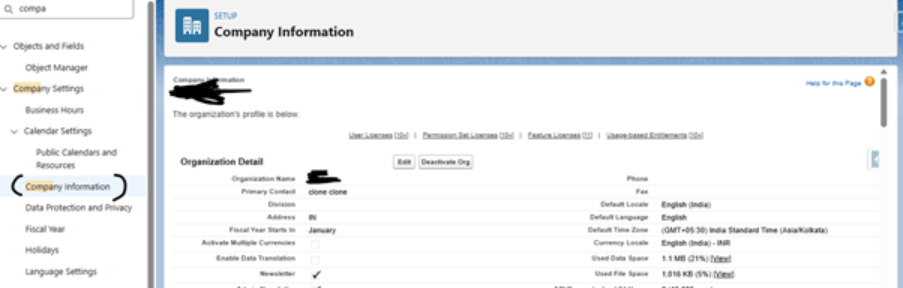
How to Manage Date Format in Salesforce
Change Date Format for a Single User
- Go to Setup
- Open Users → Users
- Select a user
- Click Edit
- Change Locale
- Save
This affects only that user
Change Date Format for the Entire Org
- Go to Setup
- Search for Company Information
- Click Edit
- Change Default Locale
- Save
This applies to new users by default
Date Format in Salesforce Reports & Dashboards
- Reports respect user locale
- Exported reports (Excel/CSV) may change format based on:
- User locale
- Target application (Excel regional settings)
This often confuses data analysis.
Date Format in Apex
In Apex:
- Date values are locale-independent
- Formatting happens when converting to String
Example
Date d = Date.today();
String formatted Date = d. format();
This output date is based on current user locale.
Best Practices for Managing Date Formats
Always store dates as Date/Date Time fields
Never store dates as text
Rely on locale for user-friendly display
Use ISO format (YYYY-MM-DD) for integrations